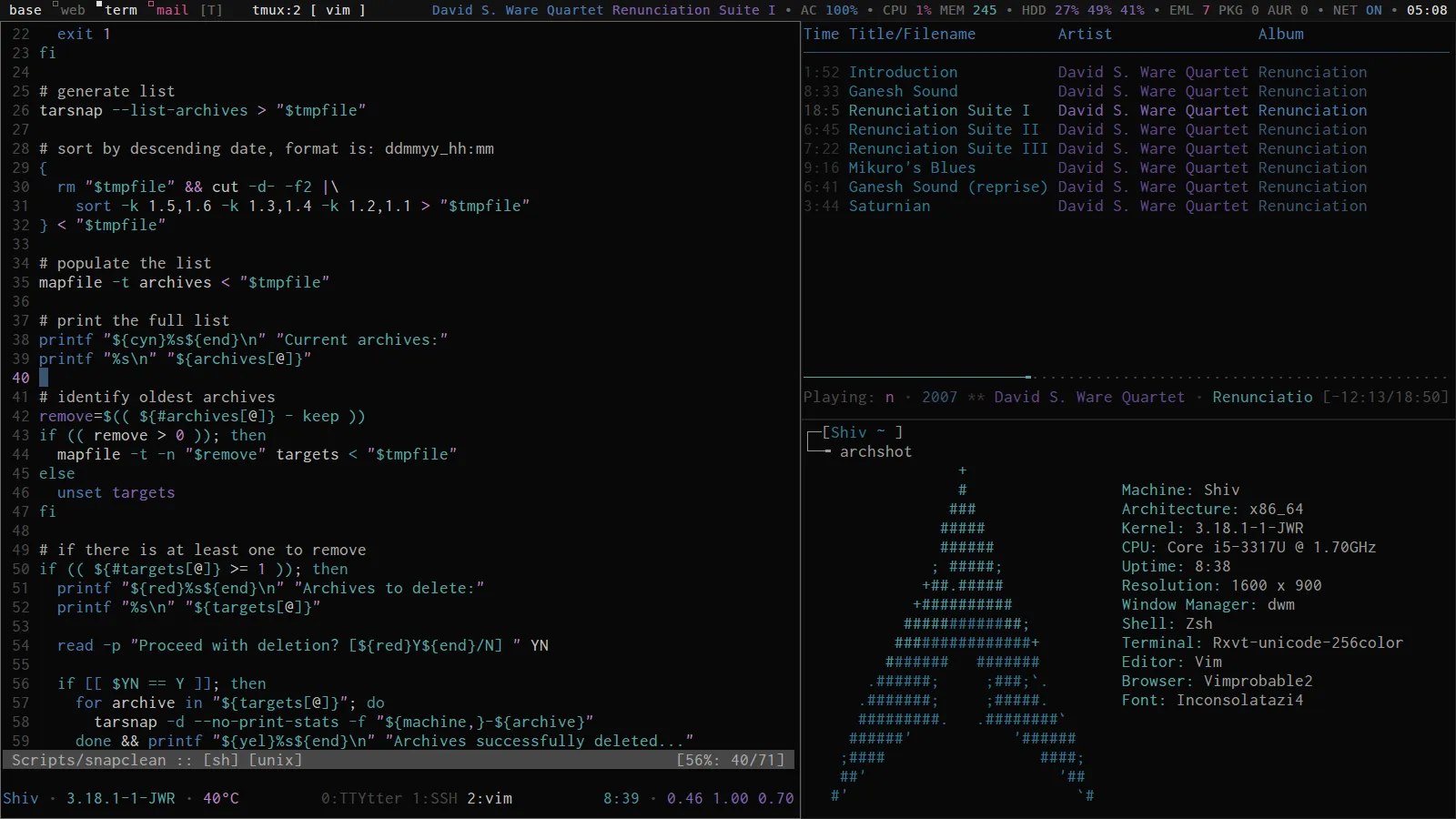
Install tmux on Arch Linux
Tmux is a terminal multiplexer. This lets you to run multiple terminal sessions simultaniously. It gives you multitasking capabilities for your terminal and more importantly, this enables you to complete system updates even after a broken SSH connection since terminal sessions can be resumed.
Read more: tmux(1)
Installation
pacman -S tmuxSane scrolling
The default scrolling behaviour runs through the previous commands instead of scrolling the terminal output. Enable sane scrolling behaviour with this config line.
set -g mouse onUsage
Commands
Here is a summary of the most common commands that you’ll want to use.
| Command | Function |
|---|---|
| tmux | Start a new session |
tmux new -s name |
Start a new named session |
| tmux ls | List sessions |
| tmux attach | Attach to the most recently used session |
tmux attach -t name |
Attach to a named session |
tmux kill-session -t name |
Kill a named session |
Key bindings
Tmux also have a lot of keybindings to help you manage all sessions and windows. Here are the essential bindings that you’ll want to learn. The default key combination to initiate a command is Ctrl+b / control+b.
| Command | Function |
|---|---|
| Ctrl+b ? | List all key bindings. |
| Ctrl-b d | Detach from the current session |
| Ctrl+b % | Add a new pane to the right |
| Ctrl+b “ | Add a new pane to the bottom |
| Ctrl+b % | Split pane horizontally |
| Ctrl+b “ | Split pane vertically |
| Ctrl+b o | Switch to the next pane |
| Ctrl+b ; | Move between the current and previous pane |
Ctrl+b arrow-key |
Navigate between the panes |
| Ctrl+b x | Ctrl+b x Close the current pane |
| Ctrl-b c | Create a new window |
| Ctrl-b w | Switch between sessions and windows |